
Catalog your
figure collection.
Keep the right box, stand, and spare parts with each figure.
Start free
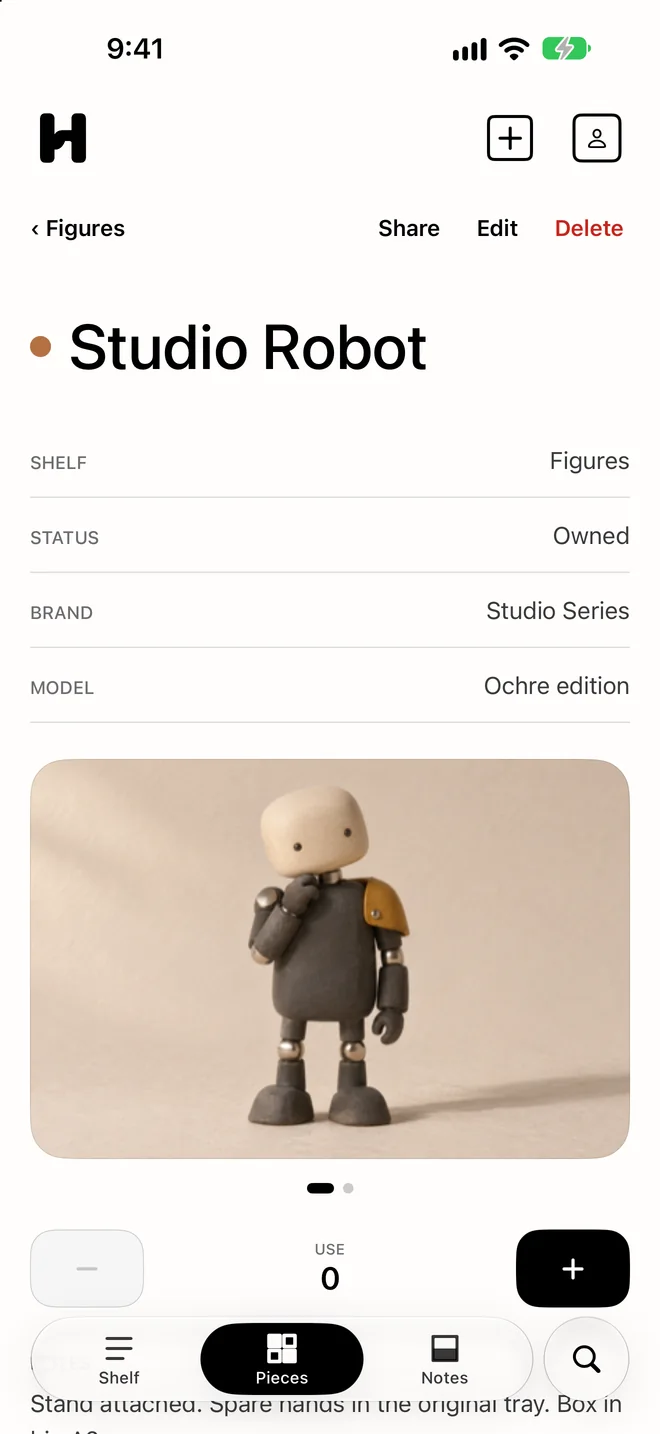
Start with two editions you could mix up.
Give each figure its own entry. If you have both editions, put them side by side and photograph the detail that tells them apart, such as the color of a shoulder plate or the shape of the stand.
Use the edition name or product number printed on the box or listed by the maker. If you only know the color, use it as a label you can recognize later and leave the release details open.
Studio Robot — Ochre · Owned
Studio Robot — Slate · Wanted
Put the color or edition in the entry’s name or Model field. Mark something Wanted when you’re looking for it, and move it to Owned once you have it.
Give loose parts a place to go.
Open the box and check the tray against the parts list for that edition, if you have it. Separate what you’ve seen from what you still need to check. A part missing from a secondhand box and a part never included with that edition are different notes.
Give the box or parts bag a short location you can find again. In this example, the stand is on the figure, the spare hands are in the tray, and the box is in bin A2. Put the same label on the bin and in the note.
Every Hoblio piece has the same built-in fields for name, brand, model, ownership status, purchase price and date, one photo, Notes, and use history. The details below are suggestions, not built-in fields or verified data. Add them yourself and link the Note to the Piece.
A note for the next time you open the box.
Copy the fields that help you find the right parts. Leave the rest blank until you can check them.
Edition / product number:
Box and tray:
Stand / base:
Spare parts:
Missing or unchecked:
Stored in:
Checked on:
Start with one figure.
One Shelf and up to ten Pieces are free. Hoblio Pro is an optional one-time purchase.